Deal workspace
/deals/[dealId] is the page for one deal. It is where the work actually happens once
a deal exists on the board.
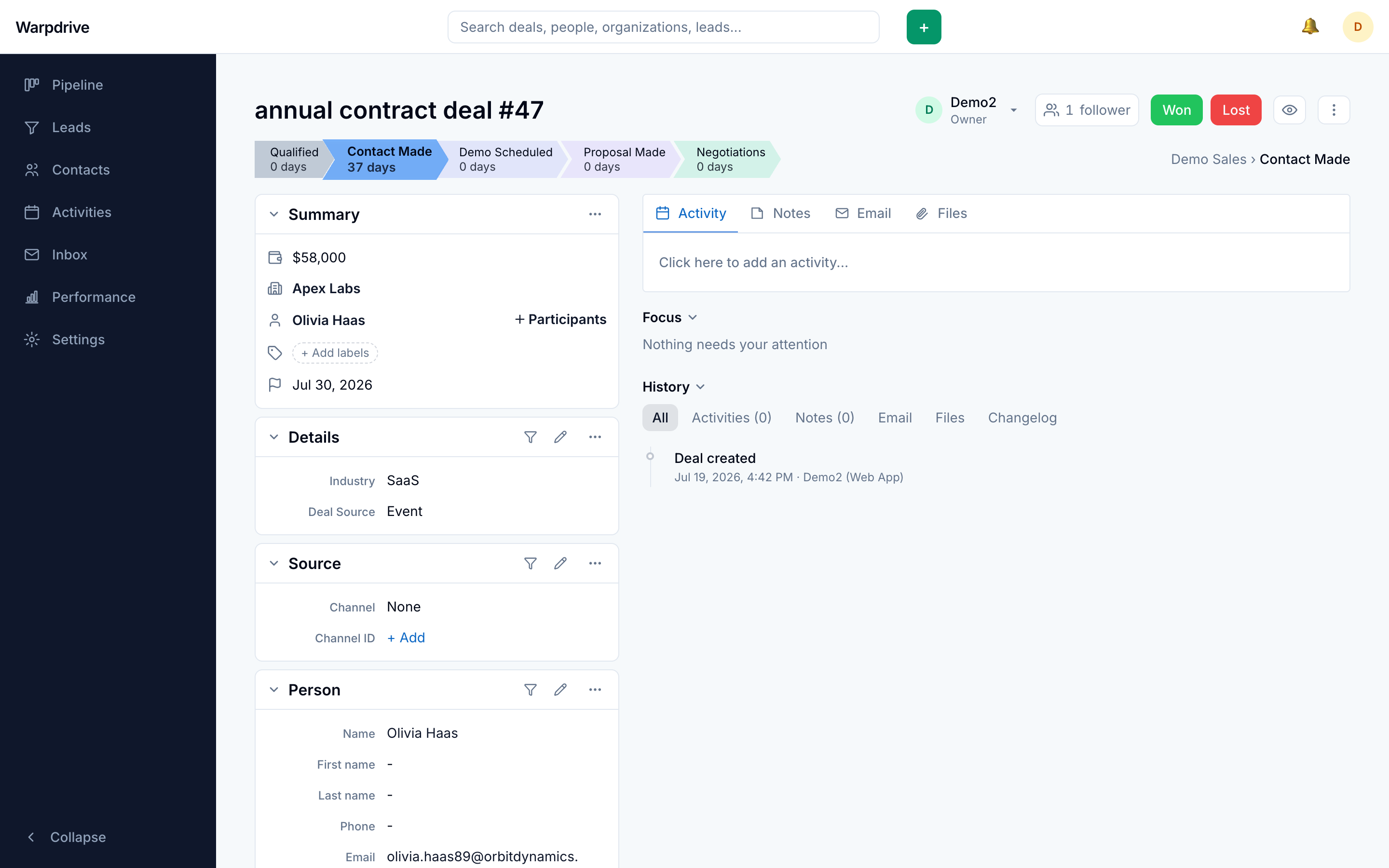
The page has three regions: a header with the stage progression, a summary sidebar of the deal's fields, and a main pane holding activity, notes, files, and email.
Stage progression
The header carries a chevron bar of the pipeline's stages, with the current one highlighted. Clicking a stage moves the deal there, the same operation as dragging a card on the board.
Marking the deal Won or Lost closes it. Closing removes it from the board and the list, which show only open deals unless a Status filter is set. Marking it lost asks for a reason and an optional comment, and both are kept on the status change in the deal's history, not only in the header chip.
Actions menu
The ellipsis menu in the header holds the deal-level actions: Copy link, Duplicate, Convert to a lead, Merge, Archive, and Delete deal. Delete is shown only if you hold the delete permission for the deal. Convert, Merge, and Delete ask for confirmation first.
Merge folds the current deal into the one you pick, and you land on the picked deal afterwards. The picker searches the deals in this pipeline by title.
Summary and inline editing
The summary sidebar shows the deal's value, expected close date, owner, organization, person, labels, source, visibility, and any custom fields.
Fields are edited in place: click the value, change it, and it saves. Escape cancels. There is no separate edit mode and no save button.
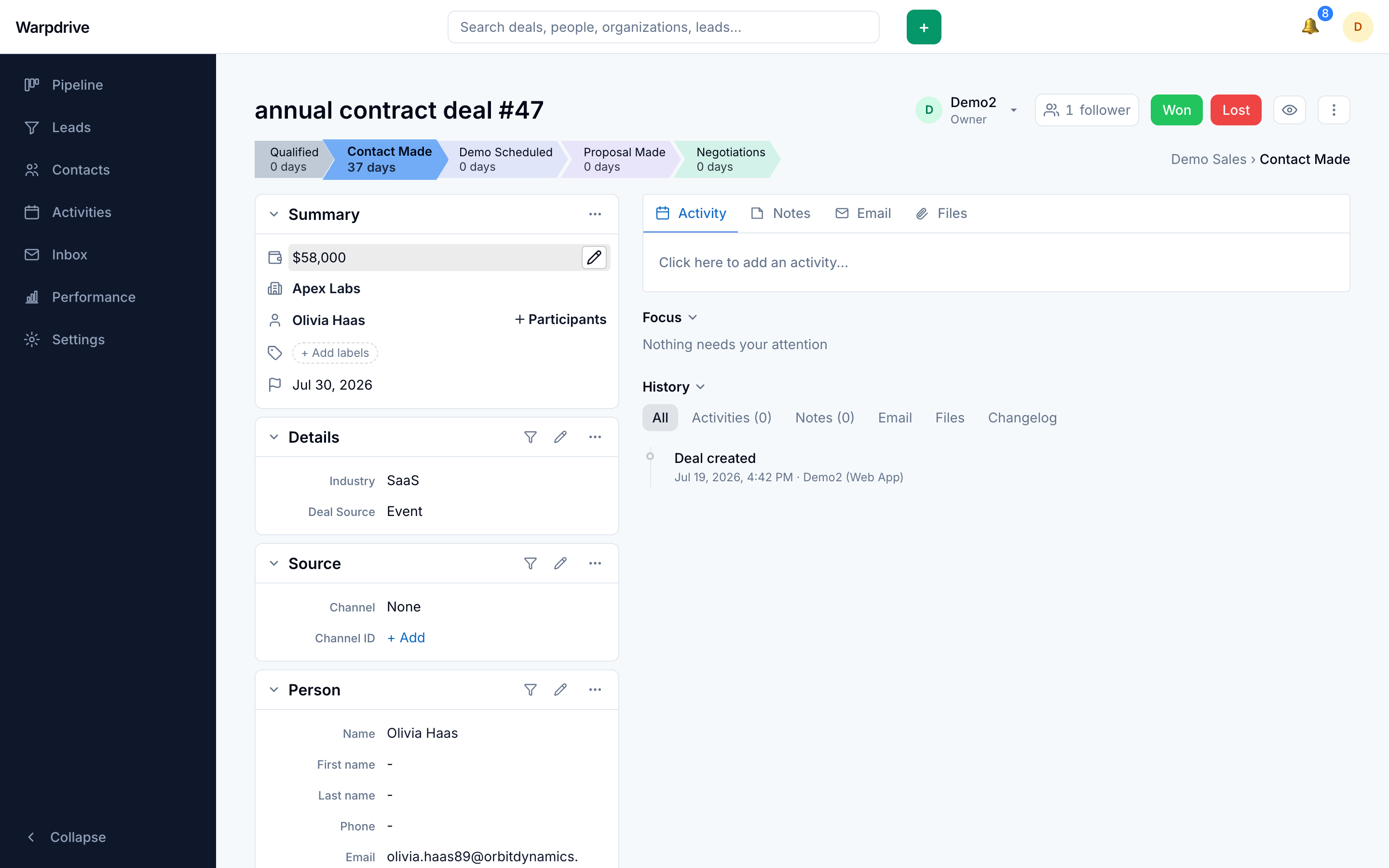
Custom fields appear here alongside the built-in ones. See Data fields for adding them.
The organization and person sections carry a Fill the gaps button that fills their empty fields from connected data providers. The organization section also has a Find people action in its menu, which searches for people at that organization. See Enrichment.
The person section's menu can switch the deal to a different person or unlink the person.
Activities
Activities scheduled against the deal appear in the main pane, split into upcoming and completed. You can add a call, meeting, or task without leaving the page.
See Activities for scheduling, types, and the calendar.
Notes
Notes are free-text entries on the deal, ordered newest first, and can be pinned to keep one at the top.
Notes support @mentions. Mentioning a colleague notifies them and gives them a pointer back to this deal. See Collaboration.
URLs and email addresses in a note render as clickable links.
Each note can take comment replies. A comment's author or an administrator can edit or delete it. Replying notifies the note's author and anyone who commented earlier on that note. Notes on leads do not take comments.
Files
Files uploaded to the deal are listed with their size and uploader.
Uploads go directly from the browser to object storage using a presigned URL, so the
application server never proxies the bytes. The size ceiling is MAX_FILE_BYTES,
25 MiB by default.
See Files.
Email
Linked mail appears in the deal's timeline as one card per message, interleaved chronologically with activities and notes, collapsed to a snippet and expanded in place. An expanded card offers Reply inline, plus Reply all, Forward, Open in Inbox, and Unlink; mailbox triage (archive, delete, labels) stays in the Inbox, one click away. Your own unsent drafts for this deal are shown beside the sent messages, with Continue and Discard.
Intercom support conversations for the deal's people also appear in this timeline and under the Email tab when Intercom is configured. See Intercom.
Linking happens at the thread level. An inbound message is matched on the sender address; an outbound one is matched on the recipient. See Email for the full model, including what does and does not appear here.
Threads reach colleagues through the deal record, not through their own Inbox. The Inbox folder is personal to each user, so a shared thread is visible to the rest of the team here on the deal, not in their mailbox view.
Participants
Participants are the people attached to the deal. The deal's own contact counts as the primary participant: it is listed first, labelled Deal contact, and cannot be removed from the participants dialog (use the person section to switch or unlink it). Participants are who the email tab offers as recipients.
The participants dialog can also create a new person, who is added under the deal's organization and linked as a participant.
Followers
Following a deal subscribes you to its notifications without owning it. See Notifications.
Permissions
Seeing the page requires the deal to be visible to you. Editing it requires edit authority, which can come from ownership, from a team you manage, or from a permission set that grants the action on any visible record.
A deal you cannot see returns not found rather than a permission error, so the page does not disclose that the record exists. A deal you can see but cannot edit returns a permission error instead.
See Permission sets and Visibility groups.